Why YouTube's API quota matters more than you think
Every Google Cloud project that accesses the YouTube Data API v3 receives a default allocation of 10,000 quota units per day. That number resets at midnight Pacific Time. Unlike bandwidth or storage limits, this quota is consumed per API call, and the cost of each call varies dramatically depending on what you're doing.
A videos.insert call — the operation that actually uploads a video — costs 100 units on the current v3 API. That's the raw upload. But most publishing workflows don't stop there. Setting a custom thumbnail adds 50 units. Updating the video's title, description, or tags after upload adds another 50. Pinning a comment costs 50 more. A realistic "publish one video" flow consumes somewhere between 100 and 250 units.
A note on the "1,600 units per upload" figure
Many blog posts and Stack Overflow answers cite 1,600 units per video upload. That figure comes from the older YouTube API v2, which used a different quota accounting model. The current v3 API charges 100 units for videos.insert. The confusion persists because Google's own documentation is scattered across multiple versions. The numbers in this guide reflect the v3 API as of 2026.
At 100 units per bare upload, a single GCP project can handle roughly 66 uploads per day if that's all it does. Factor in thumbnails, metadata updates, and analytics reads, and a more realistic ceiling is 40-50 full publish workflows per day. That sounds like plenty — until you realize the quota is shared.
The shared quota problem
When you connect your YouTube channel to a scheduling tool — CodivUpload, or any competitor — your uploads are routed through that tool's Google Cloud project. The tool's GCP project has one quota pool. Every user on the platform draws from it.
On a quiet Tuesday, that's fine. On a Monday morning when 200 creators are scheduling their weekly content drops, the quota burns through by 11am PT. After that point, every new upload request returns a quotaExceeded error. Your video doesn't go up. The scheduling tool retries, burns more quota on the retries, and the cycle compounds.
The platform can apply for a quota increase from Google, and Google generally approves legitimate requests. But the review process takes 1-6 weeks, and the platform needs to justify the increase with usage data. In the meantime, you're competing for scraps.
This is the core problem BYOP solves. Instead of sharing a quota pool with every other user, you bring your own Google Cloud project. Your uploads run against your quota. Their uploads run against theirs. No interference.
What is BYOP (Bring Your Own Project)?
BYOP stands for Bring Your Own Project. The concept is straightforward: you create a Google Cloud project under your own Google account, enable the YouTube Data API, generate OAuth credentials, and paste those credentials into CodivUpload. From that point on, every YouTube API call CodivUpload makes on your behalf — uploads, thumbnail updates, metadata changes — counts against your personal GCP project's quota instead of CodivUpload's shared pool.
Without BYOP
- ✕All users share one 10,000-unit pool
- ✕Peak-hour uploads compete for quota
- ✕quotaExceeded errors during busy periods
- ✕No control over your upload capacity
With BYOP
- Your own 10,000-unit daily quota
- Zero interference from other users
- Upload whenever you want, no contention
- Can request quota increase directly from Google
You don't need to be a developer to set this up. The process involves clicking through the Google Cloud Console and pasting two strings into CodivUpload. The whole thing takes about 10 minutes.
Step-by-step: setting up BYOP in CodivUpload
Follow these steps exactly. Each one builds on the previous, and skipping the OAuth consent screen configuration is the most common reason setups fail.
Create a Google Cloud Project
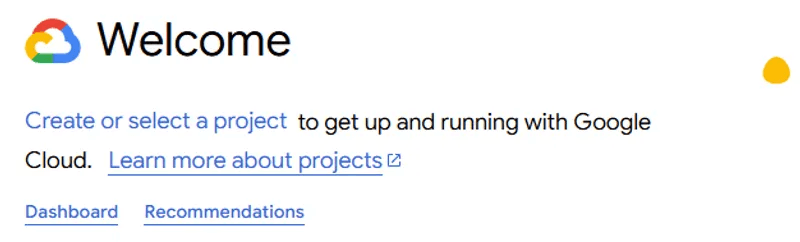
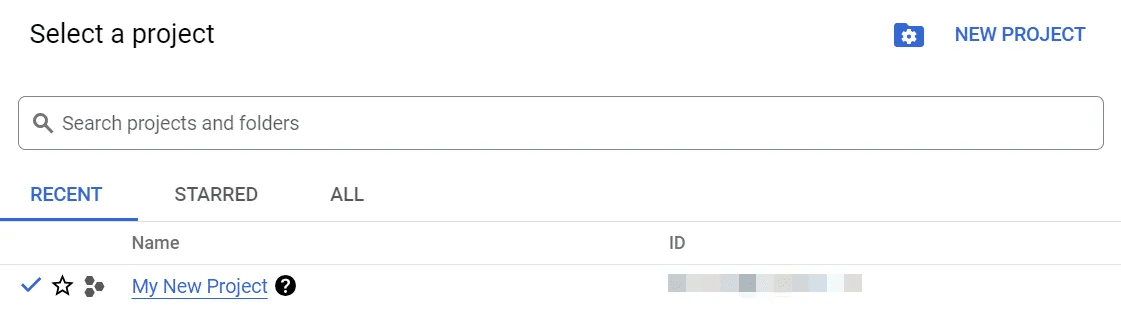
Open console.cloud.google.com and sign in with the Google account you want to own the project. Click the project dropdown at the top of the page, then click New Project.
Give the project a recognizable name — something like my-youtube-uploads or codivupload-yt. The name is internal to your GCP console; YouTube viewers never see it. Leave the organization field as "No organization" unless you have a specific reason to assign one. Click Create.
Enable the YouTube Data API v3
Make sure your new project is selected in the top dropdown. Navigate to APIs & Services in the left sidebar, then click Library. Search for YouTube Data API v3 and click on it.
Click the blue Enable button. This activates the YouTube API for your project. Without this step, any API call will return a accessNotConfigured error. The enablement is instant — no approval process.
Configure the OAuth Consent Screen
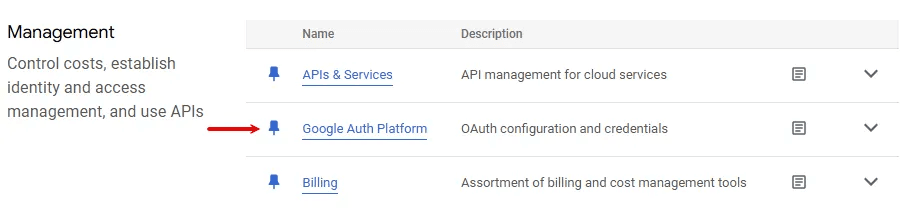
Go to Google Auth Platform (or APIs & Services → OAuth consent screen in some console versions) and click Get Started. This is where Google asks you to define what your "app" is — even though you're not building a public app, Google still requires this step for OAuth to work.
Set the app name to anything recognizable (your brand name works fine). Enter your email as the support email. Under Audience, select External. This is required even for personal use — the "Internal" option is only available to Google Workspace organizations.
Under Data Access, add these four scopes:
youtube.upload
youtube
youtube.readonly
yt-analytics.readonly
Finally, go to Audience → Test users and add your own Google email address. This is the step most people skip — and then get an "Access blocked: This app has not been verified" screen when they try to authorize.

Create OAuth Client Credentials
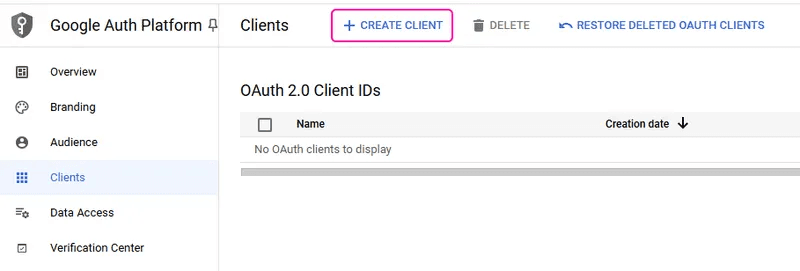
Navigate to Clients (or APIs & Services → Credentials) and click + Create Client. Select Web application as the application type.
Under Authorized redirect URIs, add this exact URL:
https://api.codivupload.com/v1/integrations/youtube/callbackClick Create. Google will show you a Client ID and Client Secret. Copy both values — you'll paste them into CodivUpload in the next step. If you close the dialog before copying, you can always find them again in the Credentials section.
Connect your credentials in CodivUpload
Open CodivUpload and go to Profiles. Click on YouTube to open the connection dialog. Check the box labeled "Use my own YouTube API credentials". Two input fields will appear.
Paste your Client ID and Client Secret from the previous step. Click Continue. You'll be redirected to Google's authorization screen — sign in with the Google account that owns the YouTube channel you want to publish to, and grant the requested permissions. Once authorized, you're done. Every future upload from CodivUpload will use your personal GCP project's quota.
Common mistake: Forgetting to add yourself as a test user in Step 3. If you see an "Access blocked" error during authorization, go back to the OAuth consent screen, navigate to Audience → Test users, add your email, and try again.
The 7-day token gotcha
There's one nuance to BYOP that catches people off guard. Google Cloud projects in "testing" mode — which is the default state when you create a new project and don't submit it for Google's app verification review — issue refresh tokens that expire after 7 days.
In practice, this means your YouTube connection in CodivUpload will stop working once a week unless you re-authorize. CodivUpload handles this gracefully: you'll receive a notification before your token expires, and re-authorizing takes a single click from the dashboard. You don't need to re-enter your Client ID or Client Secret — those are stored securely. You just click "Re-authorize," confirm with Google, and you're good for another 7 days.
How to avoid the 7-day expiry
If re-authorizing weekly is too much friction, you can submit your GCP project for Google's app verification. This moves your project from "testing" to "published" mode, and refresh tokens become long-lived (they don't expire on a 7-day cycle).
The verification process requires a privacy policy URL, a homepage URL, and sometimes a video demonstrating how you use the YouTube API scopes. Google's review typically takes 1-4 weeks. For most individual creators and small teams, the weekly re-authorization is simpler than going through the verification process.
Quota math: how many videos can you actually upload?
The answer depends on what you do with each video after uploading it. Here's a breakdown of the most common API operations and their unit costs:
Source: YouTube Data API v3 documentation. Costs verified April 2026.
Scenario A: Bare upload only
If you only call videos.insert — no thumbnail, no metadata update, no pinned comment:
10,000 units / 100 units per upload = 100 uploads/day
Scenario B: Upload + thumbnail + metadata update
The typical CodivUpload workflow — upload the video, set a custom thumbnail, and patch the description:
100 + 50 + 50 = 200 units per video → 10,000 / 200 = 50 uploads/day
Scenario C: Full workflow + pinned comment
Upload + thumbnail + update + pinned comment — everything CodivUpload supports:
100 + 50 + 50 + 50 = 250 units per video → 10,000 / 250 = 40 uploads/day
Shared quota comparison: Without BYOP, those 40-100 daily uploads are shared among all CodivUpload users on the default project. With BYOP, every one of those uploads is yours alone. If you run an agency managing 15 channels, that difference is the gap between hitting quota walls daily and never thinking about quota again.
How your credentials are protected
When you paste your Client ID and Client Secret into CodivUpload, the credentials are encrypted using AES-256-GCM before they're stored in the database. They're decrypted only at the moment CodivUpload needs to initiate an OAuth flow or refresh a token — and that happens entirely on the server. Your credentials are never logged, never exposed in API responses, and never accessible to CodivUpload staff through the admin interface.
AES-256-GCM encryption
Industry-standard authenticated encryption for all stored OAuth tokens and credentials
Google Limited Use compliance
CodivUpload adheres to Google API Services User Data Policy, including Limited Use requirements
No third-party sharing
Your Google data is never sold, shared, or used for advertising
Instant revocation
Disconnect your YouTube account anytime from the Profiles page — stored tokens are deleted immediately
Common questions
Does BYOP cost anything?
No. Creating a Google Cloud project is free, and the YouTube Data API has no per-call charges. You're working within the free 10,000-unit daily quota. Google only charges if you explicitly request and receive a paid quota increase, which is rare for individual creators.
Can I use one GCP project for multiple YouTube channels?
Yes. The quota is tied to the GCP project, not the YouTube channel. If you manage 5 channels and authorize all of them through the same GCP project, they share that project's 10,000 units/day. For true isolation, create one GCP project per channel.
What happens if I disconnect BYOP later?
CodivUpload deletes your stored credentials and falls back to the shared quota pool. Your YouTube channel is unaffected — no videos are deleted, no settings change. You can reconnect BYOP anytime.
Do I need a credit card for Google Cloud?
Google may ask you to set up a billing account during project creation, but the YouTube Data API itself is free to use within the default quota. You won't be charged unless you explicitly opt into paid services.
Does this work with YouTube Shorts?
Yes. YouTube Shorts use the same videos.insert API endpoint as regular uploads. The quota cost is identical — 100 units per upload regardless of video length or format.
