Why X requires Bring Your Own Key
In early 2023, X overhauled its API access model. The previously free and open Twitter API was replaced by restricted tiers. In February 2026, X moved to a credit-based pay-per-use model. The Free tier allows roughly 500 posts per month per app but with severely limited read access. Every account posting through the same app shares that ceiling.
The pay-per-use model lets developers buy credits and pay per API call, but for a scheduling platform with thousands of users, subsidizing credits for everyone is impractical. Enterprise starts at $42,000+/month — clearly not viable as a shared resource.
The math doesn't work for shared apps: ~500 writes/month on the free tier divided across hundreds of users means most posts would fail with a rate limit error. This is why CodivUpload — and every other legitimate scheduling tool — requires each user to create their own X Developer App.
The good news: the Free tier's ~500 post writes per month is per developer app, and when you create your own, you get the full limit to yourself. For most users scheduling a few posts per week to X, that's more than enough. If you need more, you can purchase API credits under X's pay-per-use model — no impact on anyone else.
What is BYOK (Bring Your Own Key)?
BYOK means you create an X Developer App under your own X account and provide the OAuth 2.0 credentials (Client ID and Client Secret) to CodivUpload. Instead of routing your posts through a shared CodivUpload developer app, your scheduled tweets go through your personal app — with your own rate limits, your own quota, and no dependency on other users.
The process has five parts:
You create an X Developer App at developer.x.com
You configure OAuth 2.0 with Read and Write permissions
You set CodivUpload's callback URL so authorization redirects work
You paste the Client ID and Client Secret into CodivUpload
Your posts now use your dedicated API access — independent of all other users
Setup takes under 10 minutes. You don't need to write any code or understand OAuth internals. CodivUpload handles the entire authorization flow — you just provide the credentials and click authorize.
Step-by-step setup guide
Follow these seven steps to create your X Developer App and connect it to CodivUpload. The entire process takes about 8-10 minutes.
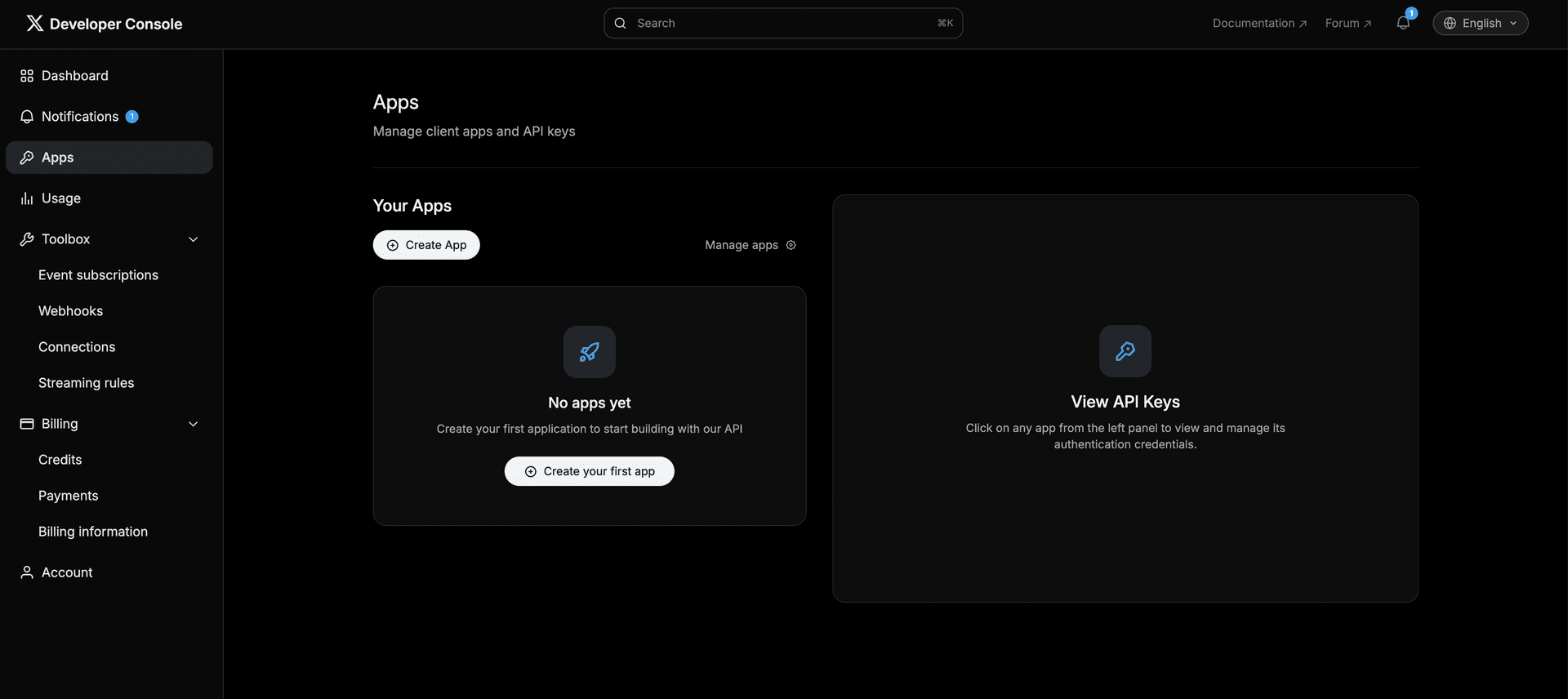
Open the X Developer Portal
Navigate to developer.x.com and sign in with the X account you want to post from. In the left sidebar, click Apps. If you already have a Developer App you want to reuse, skip to Step 3. Otherwise, proceed to create a new one.
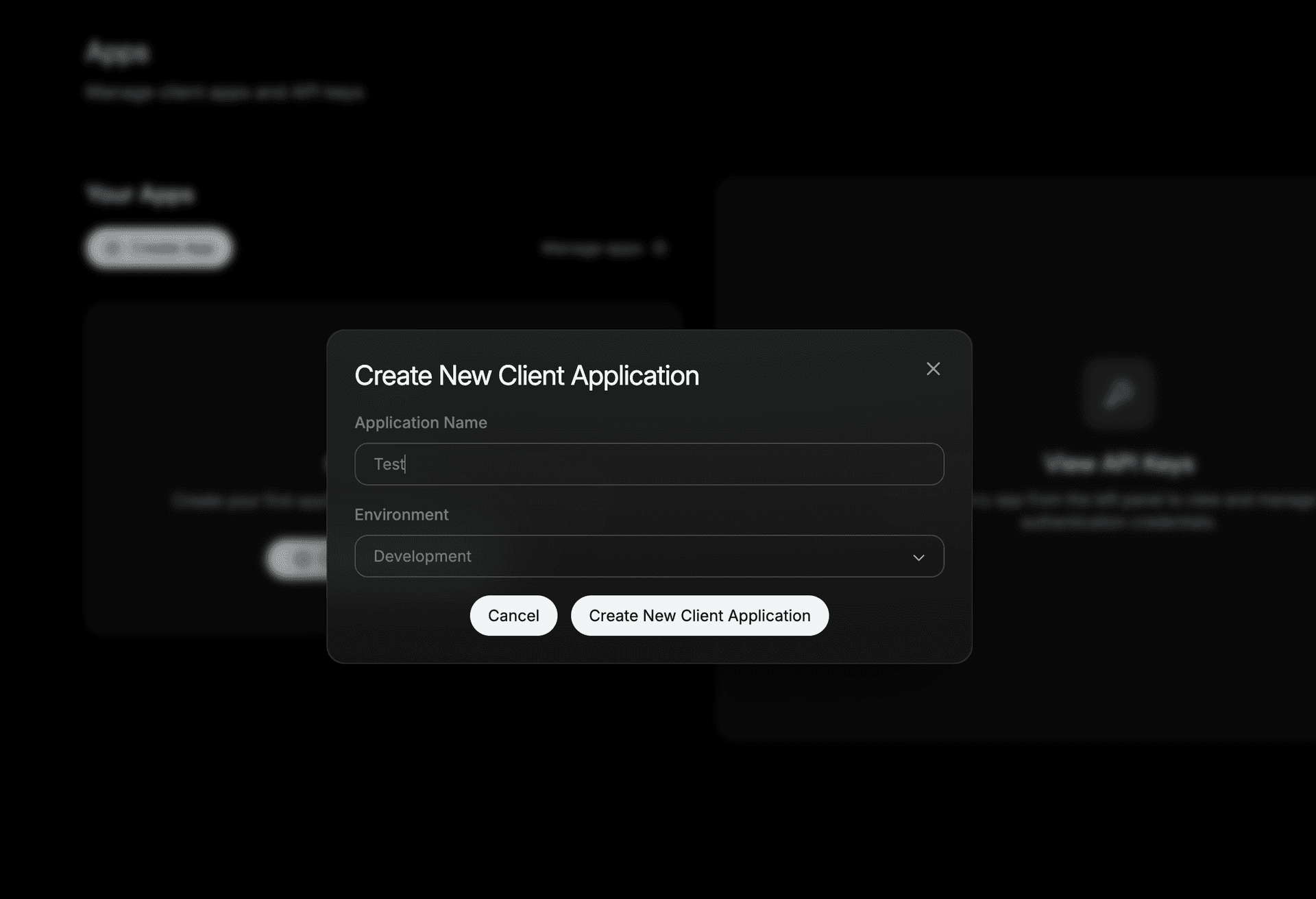
Create a New Application
Click Create App. In the dialog, enter a name for your app (e.g., "CodivUpload" or anything descriptive). Select Development as the environment. Click Create New Client Application to confirm. If your new app doesn't appear in the sidebar immediately, refresh the page.
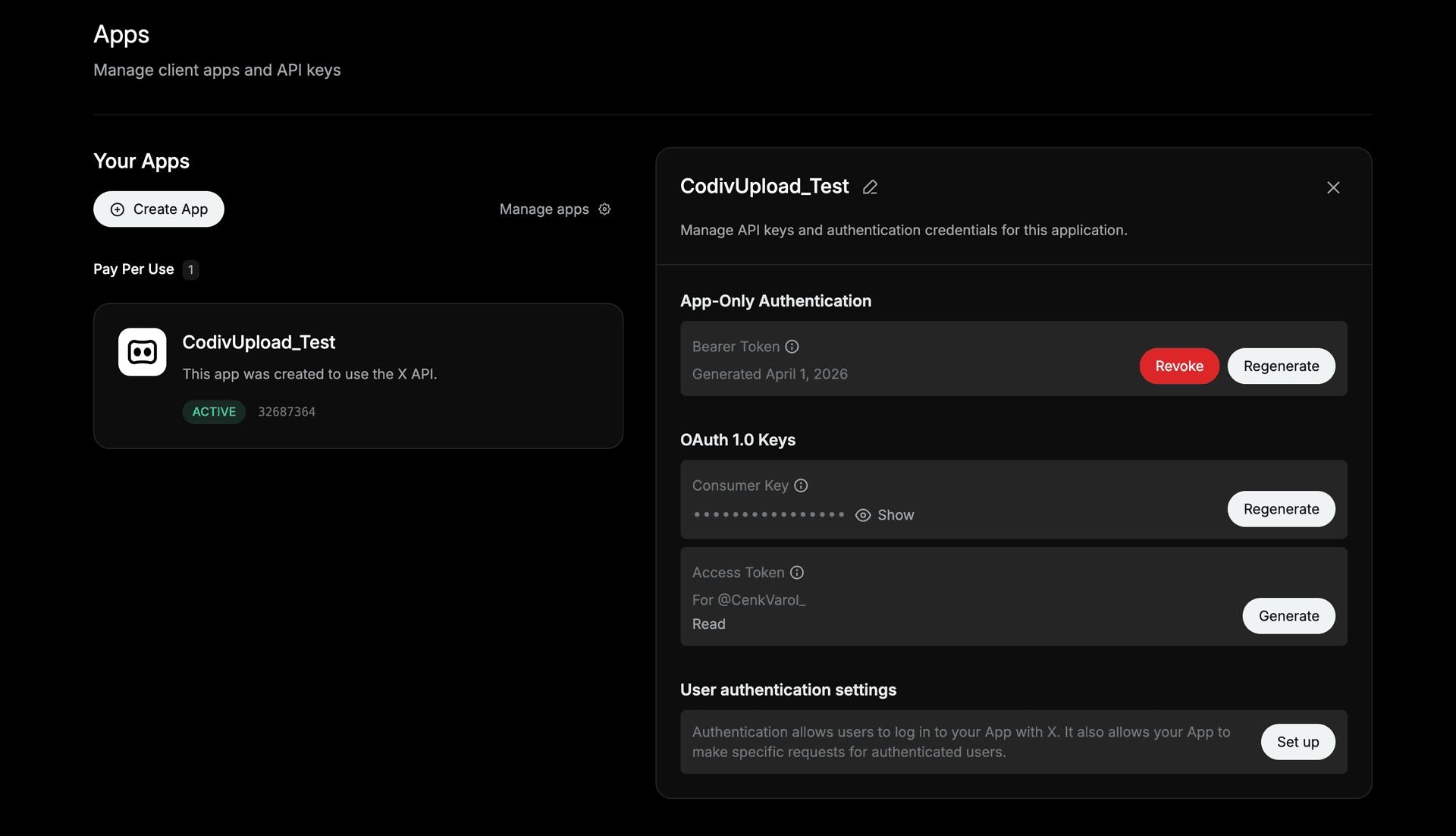
Open Authentication Settings
Click on your app name in the left panel. In the details pane, scroll down to User authentication settings and click Set up. This is where you configure OAuth 2.0 for CodivUpload.
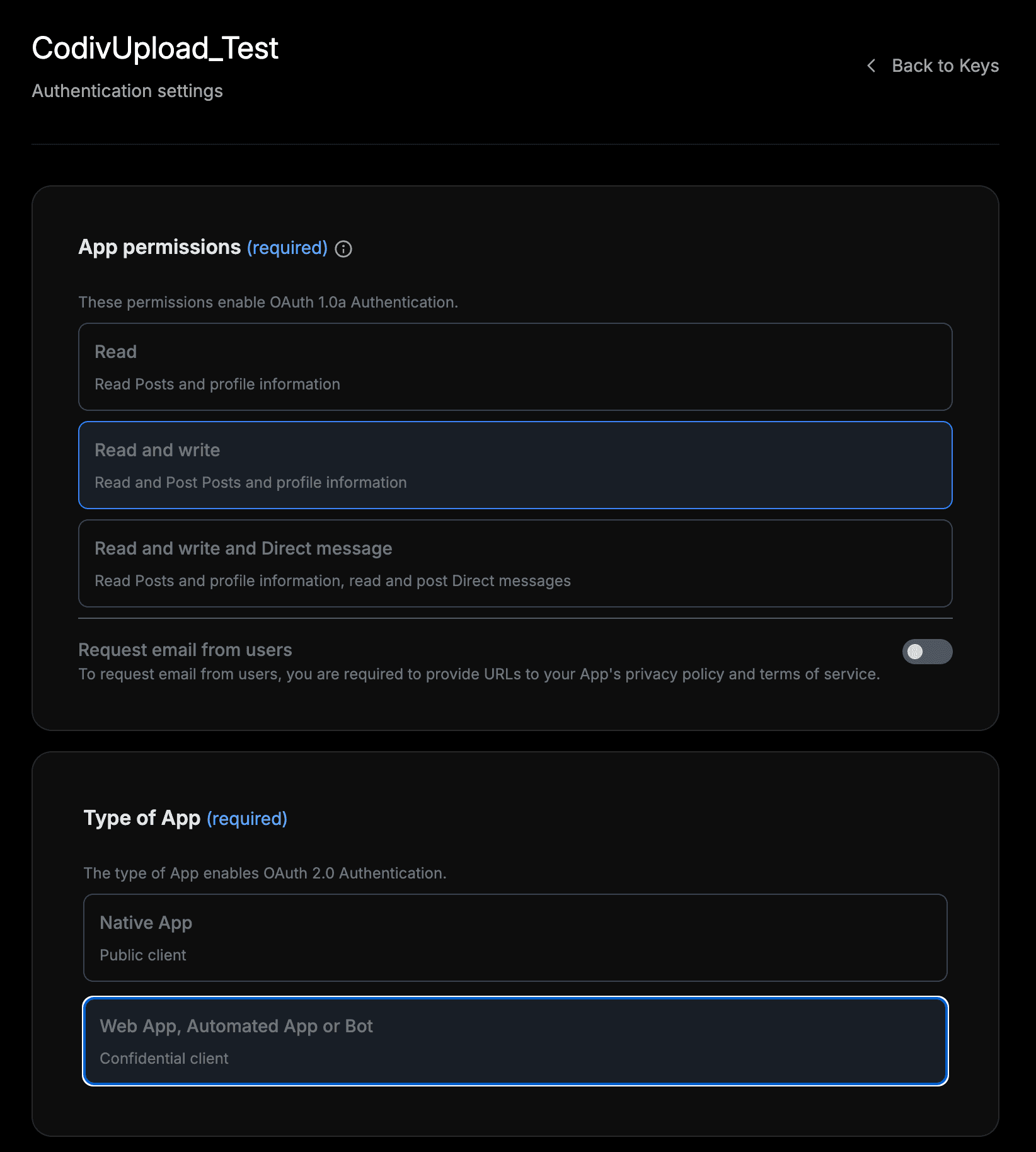
Configure Permissions & App Type
Set App permissions to Read and write — this allows CodivUpload to create posts on your behalf. Under Type of App, select Web App, Automated App or Bot (Confidential client). This generates both a Client ID and a Client Secret, which CodivUpload needs for server-side OAuth 2.0.
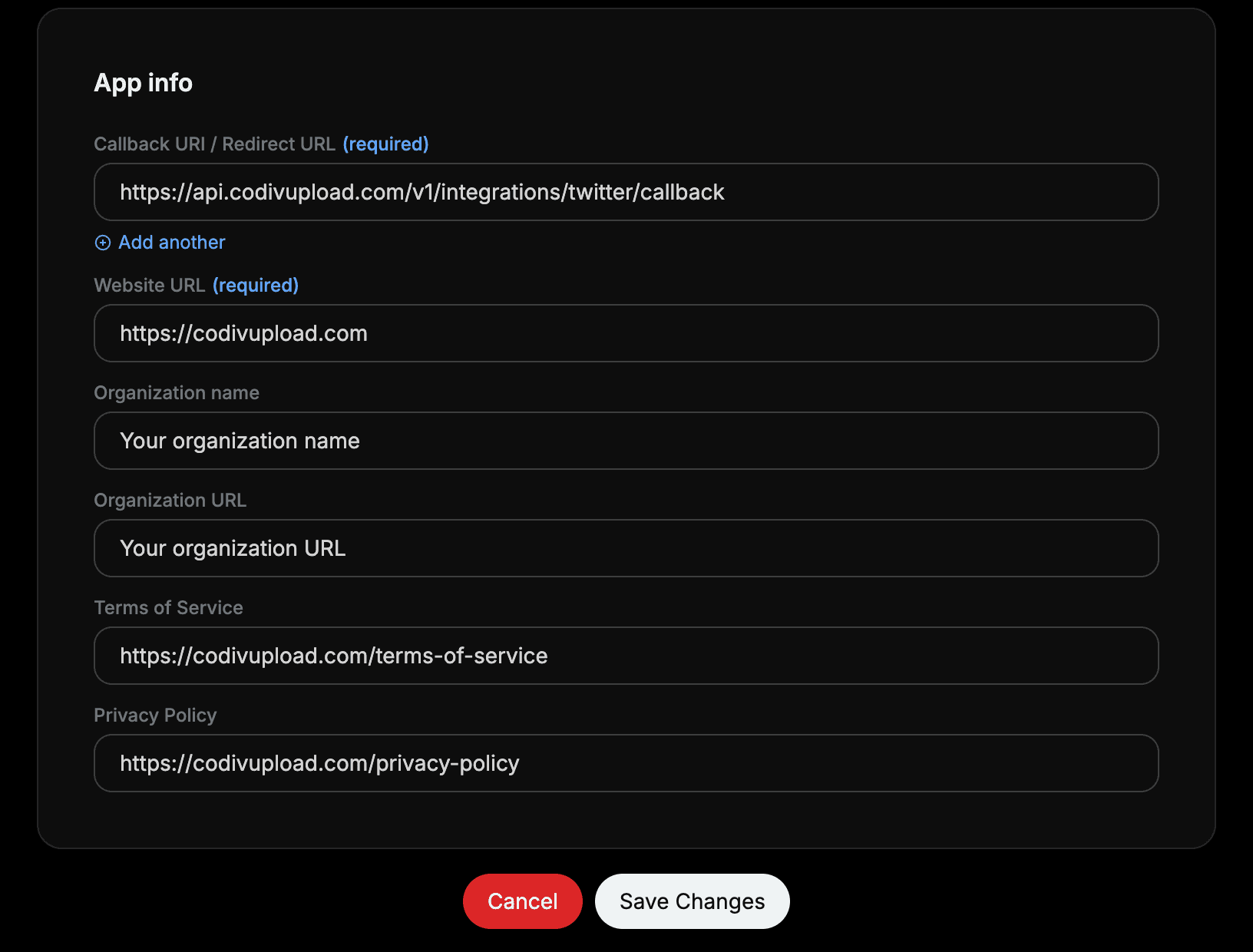
Fill in App Info
Complete the required fields in the App info section. The exact values are listed in the table below. Once all fields are filled in, click Save Changes.
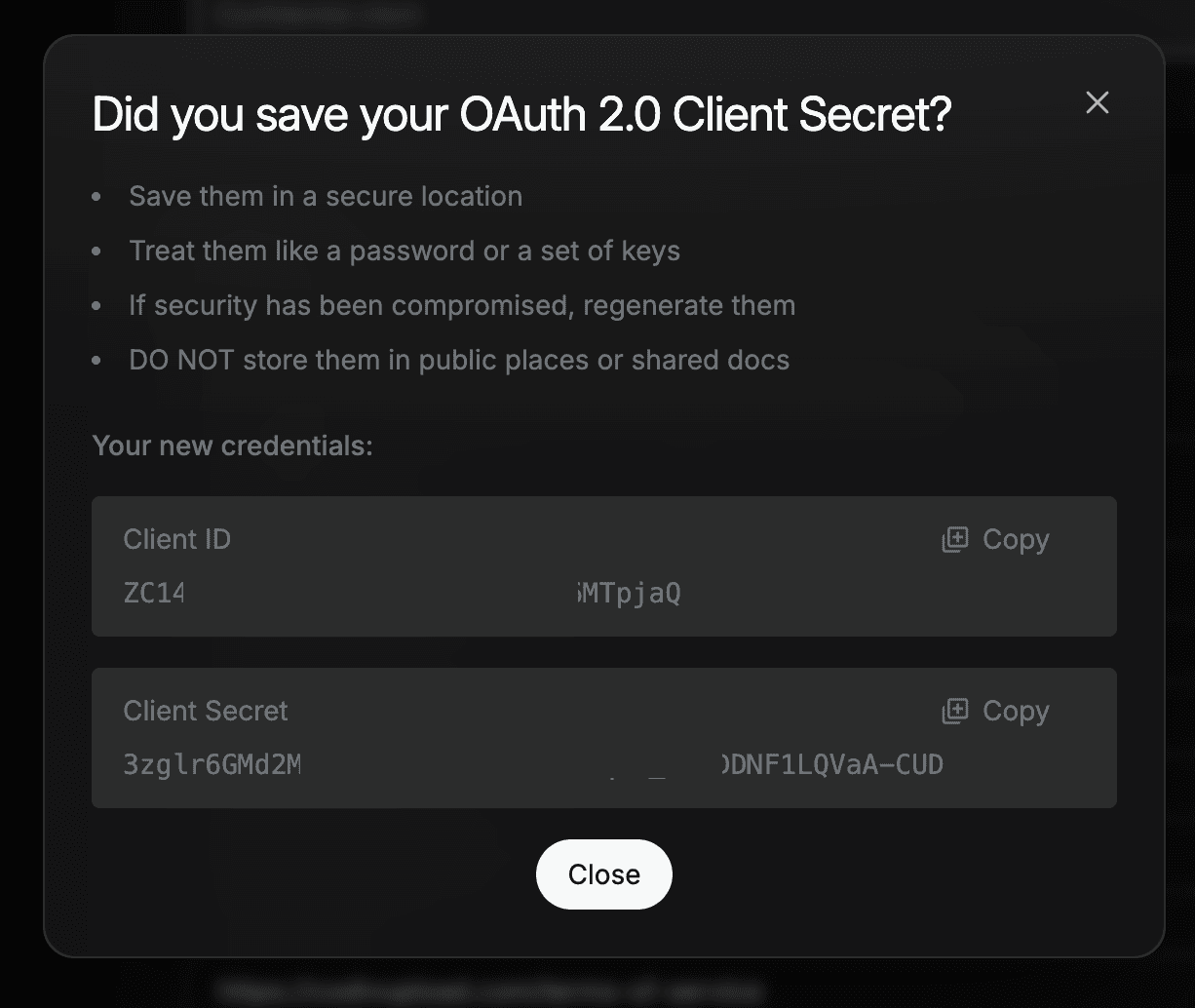
Copy Your Credentials
After saving, X displays your OAuth 2.0 Client ID and Client Secret. Copy both values immediately — X only shows the Client Secret once. If you lose it, you can regenerate it from the Keys and tokens page, but the old secret is permanently invalidated.
Connect in CodivUpload
In the CodivUpload dashboard, go to Profiles and click X (Twitter). Check "Use my own X API credentials", paste your Client ID and Client Secret, and click Continue. You'll be redirected to X to authorize the connection. Once approved, your X account appears in Profiles and is ready for scheduling.
Do NOT select "Native App" as the app type. Native Apps are public OAuth clients and don't receive a Client Secret. CodivUpload requires a Confidential client (Web App, Automated App or Bot) for server-side authentication.
App info field values (Step 5):
https://api.codivupload.com/v1/integrations/twitter/callbackhttps://codivupload.comhttps://codivupload.com/terms-of-servicehttps://codivupload.com/privacy-policySave your Client Secret immediately. X only displays it once after creation. If you close the dialog without copying it, you'll need to regenerate a new one from the Keys and tokens page — the original is gone permanently.
Common mistakes and troubleshooting
Most BYOK setup issues come from one of five configuration mistakes. Here's what goes wrong and how to fix each one:
"Native App" selected instead of "Web App"
Go back to User authentication settings, change the Type of App to "Web App, Automated App or Bot". Native Apps are public clients and don't receive a Client Secret — CodivUpload requires a Confidential client.
Permissions set to "Read" only
Your app can authenticate but can't create posts. Go to User authentication settings, change App permissions to "Read and write", and save. You may need to re-authorize the connection in CodivUpload.
OAuth redirect fails with a callback mismatch error
The Callback URI in your X app doesn't match what CodivUpload sends. Make sure it's exactly: https://api.codivupload.com/v1/integrations/twitter/callback — no trailing slash, no http instead of https.
Client Secret lost
Go to your app in the Developer Portal, click Keys and tokens, and regenerate the OAuth 2.0 Client Secret. Update the new secret in CodivUpload under Profiles > X (Twitter). The old secret stops working immediately.
App works for your account but not others
Development-mode apps only work for the account that owns them. For other users to authorize, your app needs to be approved for production access. For personal use through CodivUpload, development mode is sufficient.
X API rate limits explained
X moved to a credit-based pay-per-use model in February 2026. Here's the current access structure:
For most CodivUpload users, the Free tier is sufficient. If you schedule 2-3 posts per week to X, that's roughly 8-12 posts per month — well within the ~500 post write limit. You only need to purchase credits if you're publishing at high volume or running multiple accounts through the same Developer App.
How CodivUpload handles your credentials
Your Client ID and Client Secret are encrypted with AES-256-GCM before being stored — the same encryption standard used by banks and government systems. They are never logged in plaintext, never included in analytics, and never shared with third parties. CodivUpload only uses them to initiate the OAuth 2.0 authorization flow on your behalf.
CodivUpload requests only Read and Write access — we never request Direct Message permissions, follower management, or account deletion capabilities. You can disconnect your X account and delete your stored credentials at any time from the Profiles page in your dashboard.
BYOK vs shared app: why dedicated access matters
Some scheduling tools attempt to work around X's rate limits by funneling all users through a single developer app. Here's why that approach fails and why BYOK is the industry standard for X integration:
Shared app (problematic)
- ✕All users share ~500 writes/month (free tier)
- ✕Rate limit errors during peak hours
- ✕One user's burst depletes everyone's quota
- ✕Platform can lose API access if flagged
BYOK (your own app)
- Your app, your 50 writes/month minimum
- No interference from other users
- Purchase credits independently if needed
- Full control over your API access
Frequently asked questions
Do I need to pay for X API access to use CodivUpload?
No. The Free tier of X's API allows roughly 500 post writes per month, which is enough for most scheduling workflows. You only need to purchase API credits if you publish at very high volume to X.
Can I use the same X Developer App for multiple CodivUpload workspaces?
Technically yes, but we recommend creating separate apps for separate workspaces. Each app has its own rate limits, and sharing one app across workspaces means sharing those limits. Creating a new app takes under 5 minutes.
What happens if I hit my X API rate limit?
CodivUpload detects rate limit responses from X and marks the post with a clear error status. The post isn't lost — you can retry it once your rate limit resets, or purchase additional API credits for higher throughput.
Is BYOK required for all platforms or just X?
BYOK is required for X and optional for YouTube (where it's called BYOP — Bring Your Own Project). All other platforms (Instagram, Facebook, TikTok, LinkedIn, Threads, Bluesky, Pinterest) connect directly through CodivUpload's built-in OAuth without any developer account setup.
Can I revoke CodivUpload's access to my X account?
Yes, in two ways. Inside CodivUpload, go to Profiles and disconnect your X account — this removes your stored credentials. You can also revoke access from X directly at x.com/settings/connected_apps. Either method immediately stops CodivUpload from posting to your account.