Separate workspaces per client. One bill. Real team invites.
Run an isolated workspace for every client or brand. Invite teammates by email with role-based access. Move profiles between workspaces freely. Share one Stripe subscription across every workspace you own — no per-tenant billing pages, no spreadsheet reconciliation.
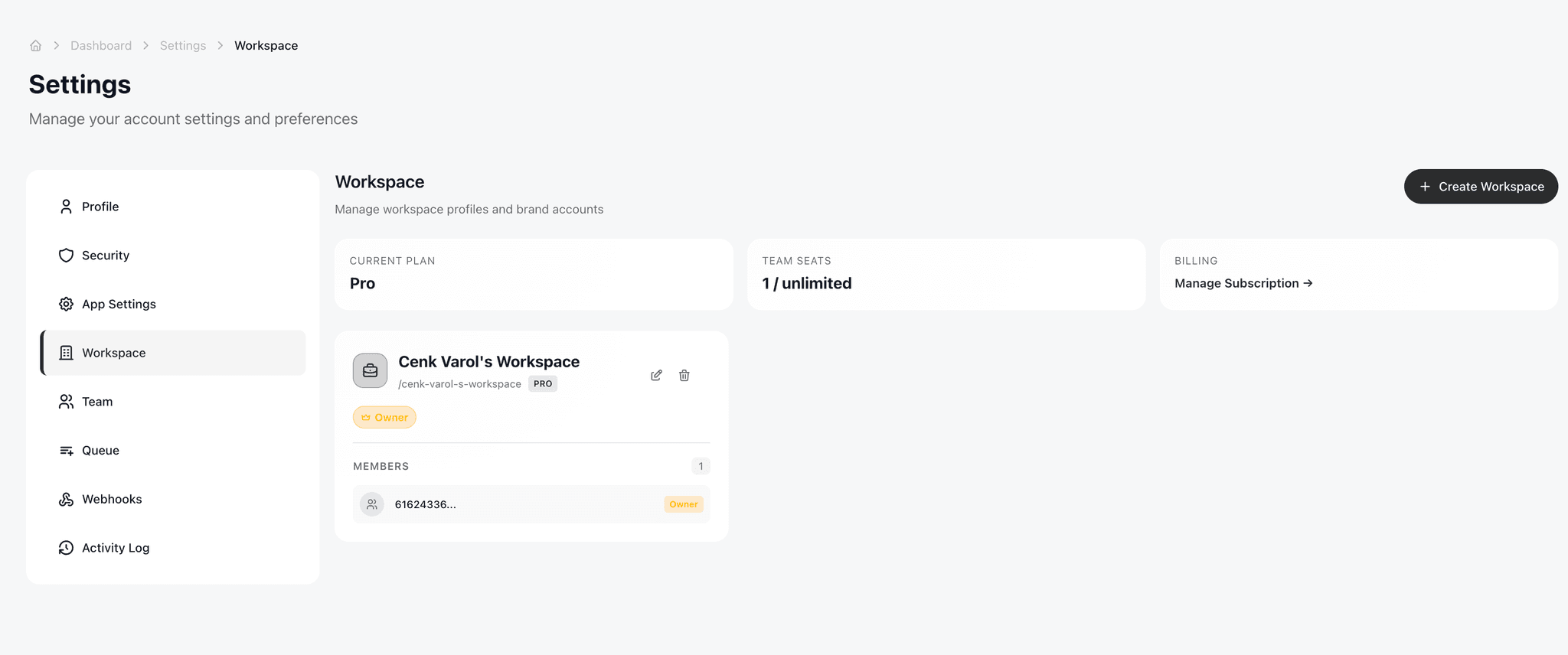
Workspace management — every workspace shows its own member count, profile count, and quota
Up to 25
team seats per workspace (Enterprise)
Unlimited
workspaces (Enterprise)
30 days
soft-delete recovery window
Branded
invite emails (Pro+)
What workspace management actually solves
Most social tools force agencies into one of two bad patterns: share a single login (security risk + audit trail mess) or buy multiple subscriptions (billing chaos). CodivUpload's workspace model fixes both.
One workspace per client or brand
Each workspace is an isolated bucket — its own connected accounts, scheduled posts, post history, analytics, and team. Switch between workspaces from the sidebar dropdown without re-authenticating. No data leakage between clients.
Invite teammates by email
Open the team page, paste an email, pick a role, hit Send. Existing CodivUpload users are added instantly. New users get a branded invitation email (sent via Resend from no-reply@email.codivupload.com) and accept the invite from /auth/invite. Owners cannot be invited as members — cycle prevention is built in.
Role-based access — Admin, Editor, Viewer
Admin sees and changes everything inside that workspace including billing-related settings. Editor composes, schedules, and publishes posts but cannot manage billing or invites. Viewer reads analytics and post history but cannot publish or invite. Roles are scoped per workspace — a user can be Admin in Workspace A and Viewer in Workspace B.
Move profiles between workspaces
Connected the wrong account to the wrong workspace? Open the profile, click Move, pick the destination. Post history follows the profile — nothing is lost. Useful when a client moves to a new workspace, or when you reorganize from per-region to per-client structure.
One subscription, every workspace
Your primary workspace carries the Stripe subscription. Adding a workspace does not add a separate billing line. Plan upgrades cascade to every workspace you own automatically — never a billing page mismatch. If you cancel, all workspaces continue through the end of the current billing period, then transition to the free tier.
Global view across workspaces
Need a portfolio-level view of all 12 client accounts? Switch the dashboard to Global mode and see aggregated post counts, scheduled queues, and per-client analytics in one screen. Switch back to a single workspace to drill in. Both views are first-class — no data export or pivoting required.
Spin up a new workspace in under 30 seconds
Adding a new client to your portfolio? Click + Add workspace, give it a name and icon, and you're done. The workspace inherits your active subscription automatically — no separate billing setup, no upsell flow. Connect the client's social accounts as profiles, invite their account manager as a Viewer if they want read access to their own analytics, and start scheduling.
Pro plan supports 5 workspaces, Business 15, Enterprise unlimited.
See plan limits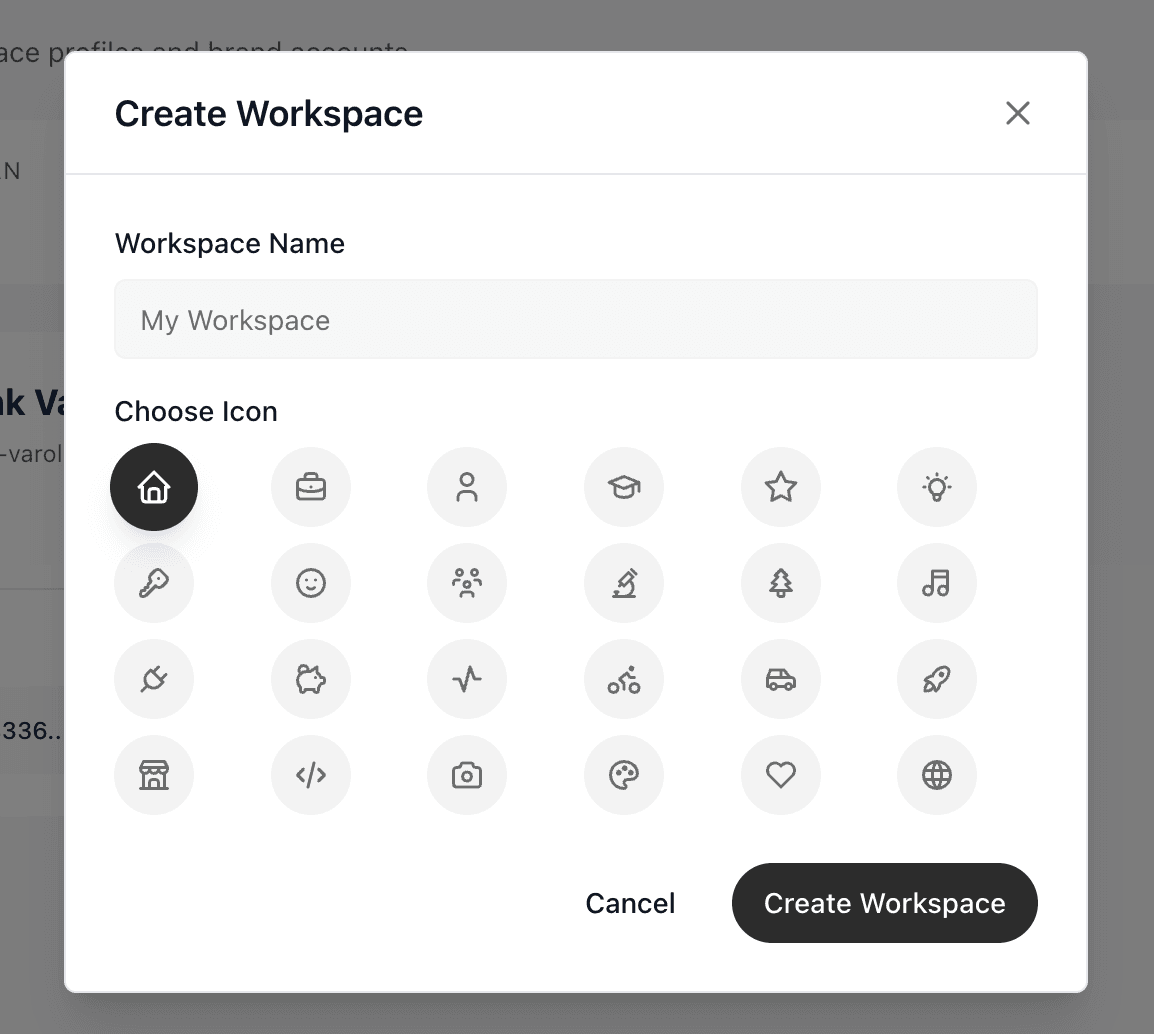
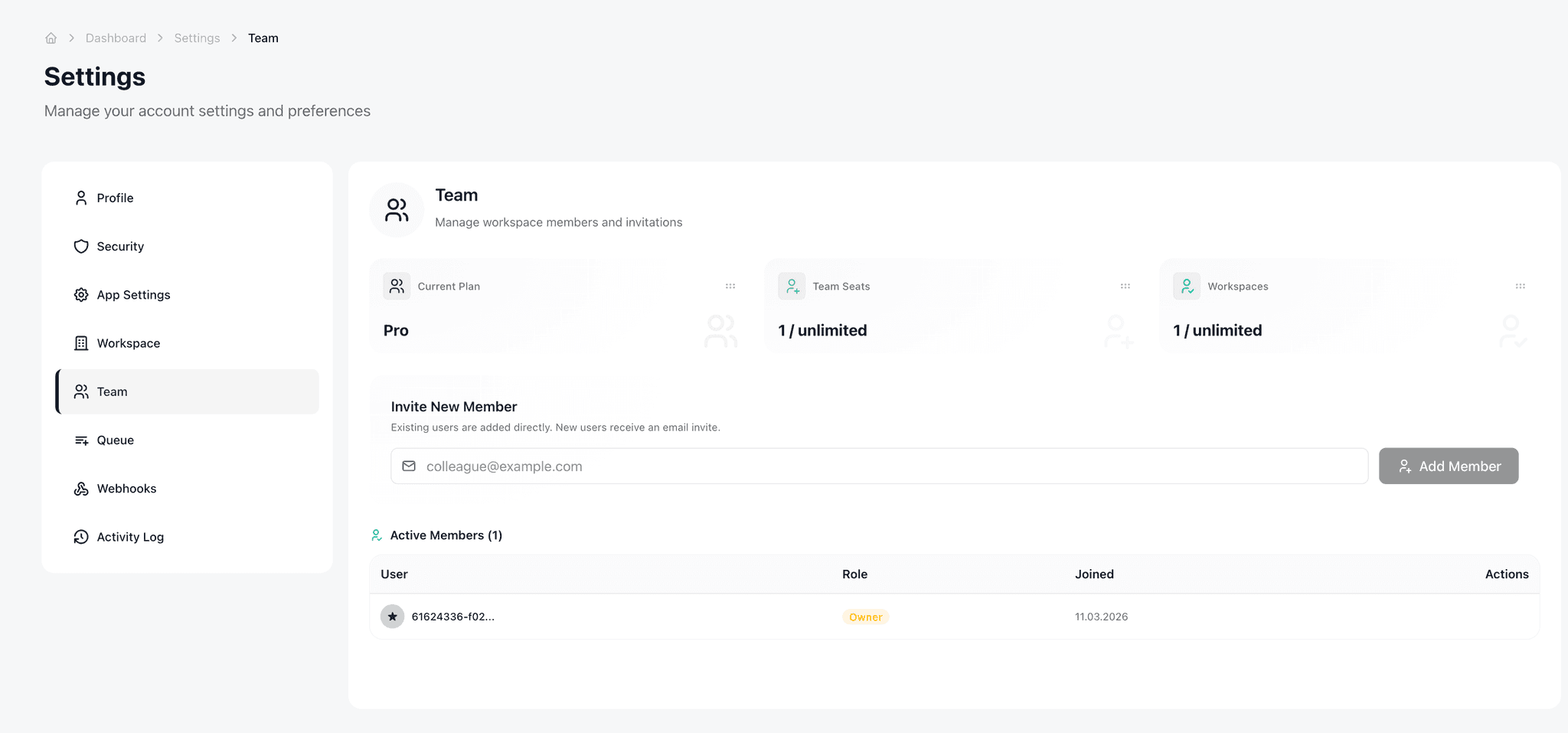
Invite by email. Pick a role. Done.
Open the team page for any workspace, click Invite, paste an email, pick Admin / Editor / Viewer. If they're already a CodivUpload user they're added immediately. If not, they get a branded invitation email and accept via a one-click link — no account creation friction.
- Invite emails sent via Resend, branded on Pro+
- Pending invites are visible in the members list
- Cycle prevention — owners can't be invited as members
Workspace + team limits per plan
Workspaces start on every plan including Free. Team invites and role-based access unlock at Pro.
| Plan | Workspaces | Team seats | Invites | Roles | Profile move | Branded invite emails |
|---|---|---|---|---|---|---|
| Free | 1 | 1 | — | — | — | — |
| Starter | 2 | 1 | — | — | — | |
| Pro | 5 | 3 | ||||
| Business | 15 | 5 | ||||
| Enterprise | Unlimited | 25 |
Profiles, posts, and seat counts are tracked globally across all workspaces you own. So a 5-profile workspace and a 7-profile workspace count as 12 toward your plan's profile cap.
How the invite flow actually works
- 1
Owner enters teammate's email
From the workspace's team page, click Invite. Type the email. Pick Admin, Editor, or Viewer.
- 2
CodivUpload checks if the email is already a user
If yes — the user is added to the workspace immediately. They see the new workspace in their sidebar on next refresh. No email sent.
- 3
If not a user — send branded invite email
Resend delivers an email from no-reply@email.codivupload.com with the inviter's name, the workspace name, and a one-click accept link.
- 4
Accept page completes signup + adds to workspace
/auth/invite?token=xxx — the link auto-creates the user account, joins the workspace, and lands them in the dashboard. No friction.
- 5
Owner sees member status update
Pending invites are visible in the members list. Once accepted they flip to Active. Owners can revoke pending invites, change roles, or remove members at any time.
Frequently asked
What's the difference between a profile and a workspace?+
A profile is one social-media identity — a single Instagram account, a single TikTok handle, a single YouTube channel — with all its connected social platforms. A workspace is a container that groups profiles, posts, team members, and analytics. Most agencies use one workspace per client, with multiple profiles inside (e.g. the client's Instagram, TikTok, and YouTube). One workspace can hold many profiles; one user can belong to many workspaces.
Can my team members see all my client accounts?+
No — workspace membership is granular. A team member only sees the workspaces you've explicitly invited them to. If you have 12 client workspaces and you invite a new account manager only to 3, they cannot see the other 9. Roles inside each workspace (Admin, Editor, Viewer) further control what each person can do.
How does billing work across multiple workspaces?+
Your primary workspace carries the Stripe subscription. Every workspace you own (you are the workspace owner) inherits the plan tier automatically. There is no separate billing page per workspace. When you upgrade from Pro to Business, the new workspace limit and seat count cascade to every workspace immediately. Profiles, posts, and seats are counted GLOBALLY across all your workspaces, so a 5-profile workspace and a 7-profile workspace count as 12 toward your plan's profile cap.
What happens if a team member leaves?+
Open the workspace's team page and remove them. Their access is revoked immediately. Posts they created stay in the workspace under their authorship until you delete or reassign them. If they were the workspace's only Admin, you must promote another member to Admin before removing them — otherwise the workspace becomes orphan-managed and locked.
Can a user belong to multiple workspaces?+
Yes. A single user account can be a member of any number of workspaces, with different roles in each. The workspaces sidebar shows every workspace they belong to; switching is instant. This is the typical agency model — one user logs in once and works across 5 client workspaces with different role levels in each.
Are invite emails branded with my agency name?+
On Pro plan and above, yes — the invitation email shows your agency's logo, colors, and inviter name (e.g. "Sarah from Acme Agency invited you to join Bloom Skincare on CodivUpload"). The from address is no-reply@email.codivupload.com but the visible content is fully whitelabel-branded. Free and Starter plans use the default CodivUpload-branded email.
How is access controlled — who can do what?+
Three roles per workspace. Admin: full access, including billing settings, team invites, profile management, and publishing. Editor: post management — compose, schedule, publish, edit, delete — but no billing or team changes. Viewer: read-only — sees analytics, post history, scheduled queue, but cannot publish, invite, or change settings. The owner of a workspace is always Admin and cannot be demoted; they can only be transferred to a new owner.
What plans include team invites and workspaces?+
Workspaces start on every plan including Free (limit: 1 workspace). Team invites and role-based access start on the Pro plan ($40/month, 5 workspaces, 3 seats). Business adds 15 workspaces and 5 seats, Enterprise unlocks unlimited workspaces and 25 seats. The full plan matrix is on the pricing page; workspace and seat counts are also enforced as soft limits so you can preview how upgrading would affect your caps.
Pro plan — $40/mo unlocks the agency stack
Five distinct features turn on at the Pro tier. Most agencies hit this need around the third client — before that, Starter is fine.
$0
1 workspace, 1 seat, 2 profiles
- ×No team invites
- ×No role granularity
- ×No whitelabel OAuth
- ×No branded invite emails
$20/mo
2 workspaces, 1 seat, 10 profiles
- ×Still solo-only — no team invites yet
- ×Default CodivUpload-branded emails
- ×No whitelabel OAuth
$40/mo
5 workspaces, 3 seats, 25 profiles
- ✓Team invites (Editor / Viewer roles)
- ✓Branded invite emails (your logo + domain)
- ✓Whitelabel OAuth connection screens
- ✓Profile move between workspaces
- ✓Team activity log
The math
$40/mo across 5 client workspaces = $8/mo per client
Need 15 clients? Business tier ($140/mo) covers it at $9.30/client. 75 clients? Enterprise ($400/mo) = $5.30/client. None of these prices include any per-channel multiplier — flat-tier, scales linearly.
$8
per client / month at Pro
Run your agency from one platform — without losing isolation
Start free with 1 workspace, upgrade to Pro at $40/mo when you onboard your second or third client. Cancel any time, every workspace continues through your billing period.